|
Build a simple MIDI Device Tester Another DIY project by M.J. Bauer |
|
 |
|
Based on the same hardware platform as the "MIDI Rifficator", this MIDI Device Tester provides functions to test MIDI "receiver" devices such as synthesizers, MIDI-to-CV translators and other MIDI gadgets. There are many commerical and DIY gadgets available which perform a multitude of MIDI test functions, often called a "MIDI Multi-tool" or "MIDI Swiss Army Knife". Chances are you'll find one that has the function you want. But in case you can't find a suitable device, or you can't justify the expense, here is a design for a simple gadget that you can build quickly and program to perform any desired MIDI controller function. The firmware package includes many basic MIDI controller utility functions. The tester is a MIDI transmitting device which sends various MIDI messages to a receiving device under test. Message types already supported include Note-On (with variable Velocity), Note-Off, Pitch Bend, Program Change, Modulation (CC01), Expression (CC11), Channel Volume (CC07), Breath Pressure (CC02) and a bunch of other Control Change messages, all with precise control of the message Data Value. The touch keypad allows notes to be played in steps of 3 semitones, up or down the chromatic scale. The centre key resets the note playing to middle-C (C4 = MIDI note 60). The Note-On Velocity data value can be set precisely using the data entry pot. The keypad operates like a monophonic MIDI keyboard to support monophonic synthesizers with legato and glissando/portamento capability. While a note is playing, the data entry pot can be used to emulate a Modulation lever, Expression Pedal, Wind Controller, Pitch Bend wheel, Volume Control, etc, according to the selected user mode. The Quick Guide below shows the user modes (screens) available. The player keypad remains active in all user modes allowing instant response to a parameter change.
Update
(2025-11): The 'Noff' menu option (in the Home screen) has been
replaced with a general 'FN' (function) option which invokes a special
utility function. The default function can be replaced with a custom
"user function", or you can add other utility functions as required.
Each utility function has a menu option 'FN' which invokes another
function (where implemented), so more functions can be added
indefinitely. The MIDI Tester curcuit board is identical to the "Rifficator"...  Construction To simplify the circuit further, the 2 BC548 transistors forming the MIDI OUT buffer/driver may be omitted. The lower 220 ohm resistor can be connected directly to the MCU pin PD3/TXD1 (TXO). The 3 green LEDs should be oriented horizontally with LED1 on the right. When a touch-pad is pressed, the respective LED will illuminate. The LED series resistor values may need to be changed to give the desired brightness. (High-efficency LEDs may be too bright with a 470 ohm resistor.) The device can be powered via the (RAW) VIN pin (6 to 9V), or by 5V into the Vcc pin (optionally from the MIDI OUT socket), or by USB (Vbus). NB: Jumper J1 on the Pro Micro module should be left open. An optional AVR ISP connector (DIP-6 pin header) allows the MCU to be programmed using an AVRISP mkII programming tool instead of the USB bootloader. Beware: Using ISP may erase the USB bootloader! But the bootloader is easily re-flashed using a Programming Tool with Microchip Studio IDE. The touch keypad can be made from a piece of double-sided, thru-hole plated, dot-matrix proto board (aka "perf board"). Here's a sketch showing how wires are soldered to the underside. The red traces are signal lines; the black ones are GND lines.
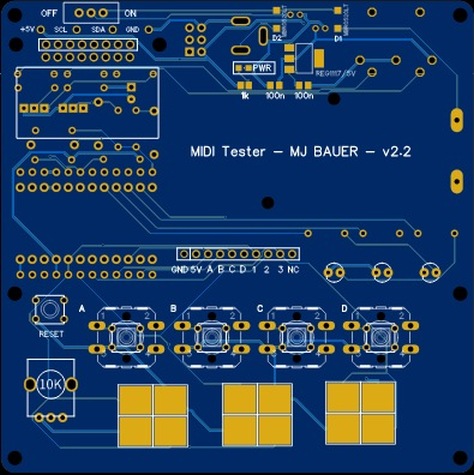
Assuming you have electronics prototyping skills, it should be fairly quick and easy to whip up the hardware platform on a piece of perf-board (as shown in the picture at the top of the page). Alternatively, there is a versatile PCB designed by a project follower to suit this and other similar MIDI gadgets...
Note:
There is no provision to mount the OLED display on this board. The
idea is to mount the display on a panel of some sort, e.g. the front
panel of an enclosure. However, the display could be mounted directly
on the board on a pair of stand-offs in the space intended for an
(optional) battery. Anyhow, there is flexibility in how and where to
locate the display. It connects to 4 pads near the top LHS of the board. Gerber files for PCB fabrication are available ... send email request. Firmware Download MIDI-Tester firmware package A hex object file is included so you can program the device without needing to re-build the firmware. The board can be programmed via the USB port without needing Microchip/Atmel Studio (IDE) and without a hardware programming tool (AVR ISP). Proceed as follows... The Pro Micro board has a flash-resident AVR bootloader. A Windows application called “AVRdude” communicates with the bootloader via USB to program firmware into the MCU flash memory. Hence you need to download some files to run "avrdude" on Windows. The best place to download the files is GitHub, here: https://github.com/mariusgreuel/avrdude/releases. There should be 3 distribution files: “avrdude.exe”, “avrdude.conf” and “avrdude.pdb”. Copy these files to a new folder named “AVRdude” on your PC local drive, in the “root directory” (C:\). Connect your board to a USB port on your PC. Open Windows “Device Manager” utility and click on “Ports (COM & LPT)”. Immediately after you apply power or reset the MCU, you should see the board’s USB-serial device listed. Note the number of the associated “COM” port. Be aware that the COM port number may change from time to time. Always check the allocated COM port after re-connecting the board to your PC. Copy the hex file "MIDI-Device-Tester-v2.0" (or latest update) into the folder "C:\AVRdude". You can enter the command first and then reset the MCU, if you prefer, because avrdude will keep trying to establish comm's with the bootloader, indefinitely. If all goes well, avrdude will report success. Note: When AVRdude finishes the firmware loading process, it may be necessary to remove the USB cable, then re-apply power to the device to start the user program.Additonal notes on Pro Micro USB bootloader variants Some Pro Micro boards have the Sparkfun (modified) bootloader installed. This behaves a little differently compared with the "normal" Arduino Micro/Leonardo bootloader. To enter bootloader mode (and remain in the bootloader for 10 seconds) press RESET twice in quick succession. Otherwise, a reset should start the user application program. In case of the Arduino Micro/Leonardo bootloader (installed in most Pro Micro clones), the MCU enters bootloader mode immediately on power-up (and/or reset) and remains in bootloader mode for 10 seconds. After 10 seconds, the bootloader tries to start the user application program, if any is loaded. ... To modify or extend the program... The firmware download package includes source code, libraries and all project files needed to build the program using Microchip/Atmel Studio IDE for AVR and SAM Devices. Download and install the app. Create a
project folder on your Windows PC local drive named "MIDI-Device-Tester".
The "solution" file expects this name exactly. Copy all the files from
the distribution pack, "Rifficator-firmware-pack.ZIP" to your
project folder. If Atmel Studio is already open, close it. Double-click the file "MIDI-Device-Tester.atsln" in the project folder. Atmel Studio will open the "solution" (project). Check that all required "components" (files) are present and in the correct place, as can be verified in the "Solution Explorer" pane (see screen-shot)...
To view/edit a source file, click the file-name in the Solution Explorer pane. When you're done editing the source code, assuming everything is correct, click 'Build Solution'. If the build was successful, a hex object file "MIDI-Device-Tester.hex" will be placed in the project sub-folder "..\Debug". To program the board, you have a choice between two options. Probably the easiest method is to proceed as above using AVRdude stand-alone from Windows Command Prompt. Another option is to create a "software programming tool" in Atmel Studio. This method allows you to program the board directly from within Atmel Studio. Proceed as instructed in the linked document, here... How to program the Pro-Micro board via USB using Atmel Studio IDE ___ |
|
|
Thanks for taking an interest in this project. Feel free to send comments and queries...
for other DIY projects that might be of interest to you! Last update: 25-NOV-2025 |